Have you ever been thinking about how to publish a React Component to a registry such as NPM so that it can be installed and used by several projects but don't know how?
I feel you, there were several attempts that I've been through this, but there was no luck. I was able to publish a component to NPM, but the component is not working properly.
But not anymore, now I was able to do so, let me share with you.
Feel free to set up a React project, that would be easier for you to test it directly while developing. But remember to put your components that you want to publish into a separate folder.
Tips
My suggestion is that you create a Next.js application with TypeScript, because it is optimized, fast, easy to learn and has a big community.
442 x 266, 11.5 KB, PNG
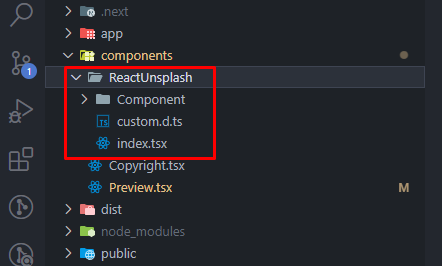
Put to-be publish components into a separate folder
Don't worry about the *.d.ts files, because we are generating them automatically!
Just try to create your best components, based on your references and styles. But if you're using a library like Tailwind CSS, your tsconfig.json setup for building the components may require extra configuration.
In my case, I'm just using MUI as predefined components. So, no need to use a styling library, all styles can be achieved with the magic sx prop.
Feel free to write tests for your components, in my case, I don't because I just want to get it to work asap, so I just check if it's working by importing that component directly inside the Next.js app, run the app then check if it looks good.
If you're developing the components in Next.js TypeScript app, you may need to create a new tsconfig.json file for compiling process due to differences between the two running contexts. For me, I create publish.tsconfig.json, to not affect the Next.js app when I try to run the app itself.
Then, you may need to adjust the config of this file to adapt to your components, depending on your implementation, dependencies, but the sample set-up is as follows
Sample content of tsconfig.json file for compilation
In summary, this setup compiles React TypeScript components into files that can be used by other React applications. Additionally, it generates *.d.ts files, which provide typing suggestions to enhance the development experience and ensure type safety for your components.
Next, run the command to build your components
powershell
npx tsc --build publish.tsconfig.json
Compile the components with TypeScript CLI command
In this case, I refer to the file that I mentioned earlier - publish.tsconfig.json
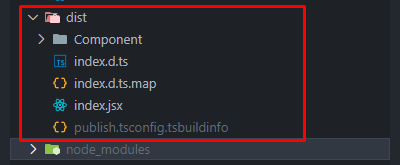
If there is no error, you will see a dist folder with sufficient files, but if it failed (check the console), it may also create some files, but it won't work properly. In this situation, you may refer to the Internet for solutions.
400 x 165, 5.0 KB, PNG
After running, a dist folder with compiled components is created.
First of all, you may need to login to your NPM account, try to run npm login and login to your account first, if you didn't have one, you need to create an account on NPM before continuing.
Add/Update needed configurations to package.json file
This will specify to NPM which to publish as a library, which would not. In this case, we only want to publish what is built under dist folder and a README.md file for documentation.
For Publish NPM package (such as: without your @username prefix - e.g., @thucne/my-package), your package must be public - "private": false.
But you can also add your git endpoint so that the community can contribute/see your library source code, it's up to you.
Remember to initialize your package first version in the package.json file, such as "version": 0.0.1.
NPM version
Every time you publish a new version, you need to bump to a new version in package.json too.
Failure to bump the version in package.json will end up with error when publishing to NPM.
powershell
npm publish
Run command to publish your package to NPM
Next, if without any error, your components are now published, try to install it in an arbitrary React application and see if it works as what you see when running it inside the original source code.