Azure
2 min read
How to Fix Node.js "Application Error" on Azure when using GitHub Actions
Something to fix on ourside?

755 x 143, 5.6 KB, PNG
The ProblemThe Problem
The ProblemThe Problem
I avoided using GitHub Actions to deploy Node.js apps to Azure for years. Why? Because I simply couldn't get them to work. I would see "Build Succeeded" and "Deployment Successful" messages, yet the actual application would crash immediately upon launch.
Today, I faced the same issue again. However, this time I had my AI companion to help debug. After several prompts and failed attempts, I finally found the root cause and a permanent fix. I’m sharing it here to save you the headache.
The Root Cause The Root Cause
The Root Cause The Root Cause
The issue lies in the default behavior of the GitHub Actions build service. By default, it runs
npm startMany Node.js developers use
nodemon in their startnodemonWhy does this happen?
nodemonnode index.jsThe Solution The Solution
The Solution The Solution
You have a few ways to fix this:
-
1.
Update package.json: Change the "start" command to run
node index.jsnodemon - 2. Azure Configuration: Override the startup command directly in the Azure App Service settings.
- 3. Update the Workflow: Configure the GitHub Action to define the correct startup command.
While the first two options are straightforward, I prefer the third approach as it keeps the configuration within your deployment script.
Step-by-Step FixStep-by-Step Fix
Step-by-Step FixStep-by-Step Fix
Locate the Workflow File: Go to your GitHub repository and open the branch you are deploying. Navigate to
.github/workflows.ymlEdit the YAML: Click "Edit" and paste the following code block just before the deploy step (the step with
id: deploy-to-webapp): yml
      - name: Set Azure startup command
        uses: azure/cli@v2
        with:
          inlineScript: |
            az webapp config set \
              --name <YOUR_APP_NAME> \
              --resource-group  <YOUR_RESOURCE_GROUP> \
              --startup-file "node index.js"
As for the full yml script, you may refer the below snippet
yml
name: Build and Deploy Node.js App

on:
  push:
    branches: [main]

jobs:
  deploy:
    runs-on: ubuntu-latest

    steps:
    - uses: actions/checkout@v5

    - name: Setup Node.js
      uses: actions/setup-node@v4
      with:
        node-version: '20.x'

    - name: Install dependencies
      run: npm install

    - name: Build (if any)
      run: npm run build --if-present

    - name: Set Azure startup command
      uses: azure/cli@v2
      with:
        inlineScript: |
          az webapp config set \
            --name <YOUR_APP_NAME> \
            --resource-group <YOUR_RESOURCE_GROUP> \
            --startup-file "node index.js"

    - name: Deploy to Azure
      uses: azure/webapps-deploy@v3
      with:
        app-name: "<YOUR_APP_NAME>"
        publish-profile: ${{ secrets.AZURE_WEBAPP_PUBLISH_PROFILE }}
        package: .
A full example of Github Actions YAML script to build and deploy Node.js to Azure App Service
844 x 528, 22.7 KB, PNG
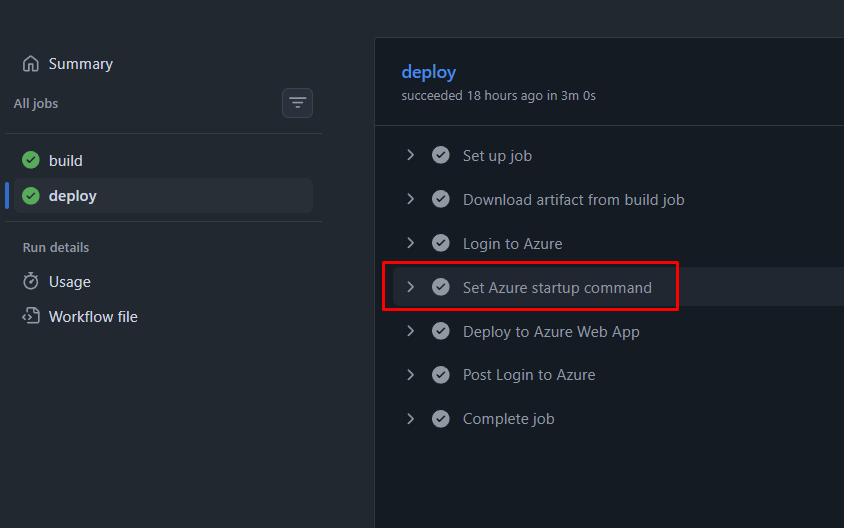
Deploy: Now, your application should start without errors.
I hope this helps!