If you're really into Unsplash community, like photography and have something to do with React/Next.js, you may, sometimes, wish to have Unsplash photos integrated into your products/applications.

Unsplash Developers API got your back! And it's FREE.
You could definitely build an Unsplash Photos gallery into your applications easily, wouldn't be so tricky to do, however, it may take time to follow the required guidelines from Unsplash on how to integrate and use their community photos.
In this article, I will show you a detail on how to accelerate your building process of integrating Unsplash into your applications.
First, you may need to login into your Unsplash account to be able to get one. If you didn't have one, please try to create one, this shouldn't too hard to sign up one.
Create an application at: API Applications | Unsplash
Fill in necessary information and tick on consent boxes.
When finished, all you need to create a Unsplash Photo gallery is the Access Key. Other keys such as Application ID and Secret Key, we don't need that.
Copy your Access Key and store it securely, such as .env files and not to upload it to anywhere publicly on the Internet, ever!
If you failed to practice those rules, Unsplash may ban your account/keys.
As documented at Unsplash API Documentation | Free HD Photo API | Unsplash, you need to send the request to Unsplash API endpoint to get Unsplash Photos - which is a common sense.
It also specifies some library that help you to reduce the implementation time, that will speed up your development process. See: Unsplash API Documentation | Free HD Photo API | Unsplash
If you can go ahead with those instructions and guidelines, that's so great!
But if you don't have much time to investigate on those, let me help.
As you might already know, Access Key that you previously got, it shouldn't be found anywhere publicly, so you may need to hide your requests from the user browser. But how can we do this?
Clearly with a client-side application, it may require a server-side part to hide the request. Since we're using Next.js, we simply don't have to - it's one of Next.js's edges!
This is to create an endpoint that the app would make request to, that would never expose the Access Key to the browser.
Under app/api folder, create a folder called unsplash, then create a route.js file under that folder.
Fill that file with the following content:
const UNSPLASH_URL = process.env.UNSPLASH_URL;
const UNSPLASH_KEY = process.env.UNSPLASH_KEY;

export async function GET(request) {
    const { searchParams } = new URL(request.url);

    const res = await fetch(`${UNSPLASH_URL}?${searchParams.toString()}`, {
        headers: {
            Authorization: `Client-ID ${UNSPLASH_KEY}`
        },
        cache: 'force-cache'
    });

    const data = await res.json();

    return Response.json(data);
}

export async function POST(request) {
    const body = await request.json();
    const { download_url } = body;

    const res = await fetch(download_url, {
        headers: {
            Authorization: `Client-ID ${UNSPLASH_KEY}`
        }
    });

    const data = await res.json();

    return Response.json(data);
}
A Next.js route handler that hides actual Unsplash requests.
The "proxy" is now set up. Move to the UI one.
While implementing the Unsplash Photo gallery for my website, I think it would be great if I can make it an NPM component that can be used in several projects.
It's just the UI, not much about the logic so you can do it yourself.
npm i react-unsplash
Install the UI accelerator component for Unsplash Gallery
And use it inside your application as a React Component, the sample usage would be:
<ReactUnsplash
            initValue={search}
            loading={isLoading}
            onSearch={onSearch}
            onCommit={onCommit}
            onSelect={onSelect}
            onClose={handleClose}
            images={results}
            handleLoadMore={handleNextPage}
            hasMore={hasNext}
            displayMode="normal"
            cols={isMobile ? 2 : 3}
/>
A sample usage of ReactUnsplash component
Confusing? I know, I would be confused too. But let me break it down
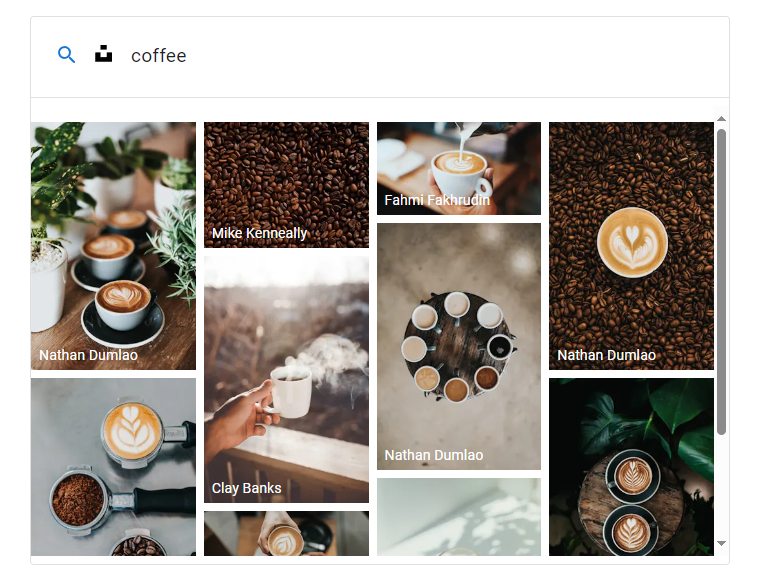
> initValue - is the initial value that you want the Unsplash gallery to be filled and make request to that search term in prior to what to be searched later.
For example, you may want to show a placeholder of "coffee" photos as a suggestion of how to search. See below, when loaded, the gallery will be filled with coffee and coffee images!
> loading - is an indicator of loading state, it should be the loading state of pending requests, for example, a loading state should be shown when you're getting the photos from Unsplash.
Example: If you are using a fetch library like SWR - a React library that helps to fetch and revalidate data effectively - you may use the isLoading state from its hook as this property value.
const [page, setPage] = useState(1);
const query = search
        ? new URLSearchParams({
              query: search,
              page: page.toString(),
              per_page: '10'
          }).toString()
        : null;

const { data, isLoading } = useSWR(query ? `${URL}?${query}` : null, fetcher);
[...]
<ReactUnsplash [...] loading={isLoading} />
Use isLoading exposed by useSWR as a loading property's value.
> onSearch - this should trigger a search function, to Unsplash endpoint
In this case, my onSearch would trigger a debounced function, that only run when the user finished typing for 1 second
const [page, setPage] = useState(1);
const [currentSearch, setCurrentSearch] = useState('');
const [search, setSearch] = useState('');

const searchNow = useCallback(
    (value) => {
        if (isLoading) return;

        if (value === currentSearch) return;

        setPage(1);
        setSearch(value);
        setCurrentSearch(value);
    },
    [currentSearch, isLoading]
);

const debounceSearch = useMemo(() => debounce(searchNow, 1000), [searchNow]);

const onSearch = (value) => {
    debounceSearch(value);
};
onSearch should trigger a search function
Explanation: the currentSearch prop is to not to reset the page to 1 if the user is scrolling down for next pages of the same search query.
> onCommit - fires immediately after the user hits enter, this means, they want to commit with their search terms and the app should start looking for those photos.
In my case, this will fire searchNow function, without debounce functionality
const onCommit = (value) => {
    searchNow(value);
};
onCommit should fire the search function immediately
> onSelect - fires when the user clicks on one of the photos, it will call onSelect with the photo details (defined by Unsplash API)
In my case, I will do like so, just to select some of the photo info because I don't want them all.
const onSelect = (image) => {
    const info = getUnsplashNeccessaryInfo(image);
    setSelectedImage(info);
    onChange?.({
        image: info,
        searchTerm: search
    });

    // track usage
    axios.post(URL, {
        download_url: info.links.download_location
    });
};
onSelect sample implementation
You may notice that, why track usage? It actually one of the rules of user behavior when dealing with Unsplash photos, you need to send a request to the link under info.links.download_location so that they can track that image usages.
> images - an array of Unsplash images returned by the API.
For example,
const [results, setResults] = useState([]);
const { data, isLoading } = useSWR(query ? `${URL}?${query}` : null, fetcher);

const memoizedResults = useMemo(() => data?.results || [], [data]);

useEffect(() => {
  if (page === 1) {
      setResults(memoizedResults || []);
  } else {
      setResults((prev) => [...prev, ...(memoizedResults || [])]);
  }
}, [memoizedResults, page]);
Results should be data.results returned by Unsplash
> handleLoadMore - fires when user scroll to the end of the results, and when hasMore is true.
> hasMore - should indicate if there is more results (next page)
Example:
const [page, setPage] = useState(1);
const [hasNext, setHasNext] = useState(false);

const query = search
    ? new URLSearchParams({
          query: search,
          page: page.toString(),
          per_page: '10'
      }).toString()
    : null;

const { data, isLoading } = useSWR(query ? `${URL}?${query}` : null, fetcher);

useEffect(() => {
    if (data?.total_pages) {
        setHasNext(data.total_pages > page);
    }
}, [data, page]);

const handleNextPage = () => {
    setPage((prev) => prev + 1);
};
A sample of how to deal with handleLoadMore and hasMore
> displayMode - either "normal" or "popup" default to "normal".
To see the demo, check out link under Demo section!
> cols - number of photo columns being displayed, if not specified, the columns will be adjusted automatically based on the width.
And, there are more options! Check out the documentation at react-unsplash - npm (npmjs.com) for a complete details.
Check out a live demo at
And that's pretty much it!
Hope this helps, feel free to discuss!